This command can be executed from the SI Editor's Right-click menu.
The Attributes command is available by right-clicking when the cursor is positioned between either a Text (TXT), List (LST), Item (ITM), Ordered List (OLI), or Universal Resource Locator (URL) tag.
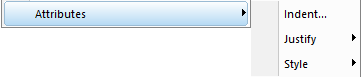
Indent
Increase or Decrease Ordered List Indent
For the Ordered Lists (OLI) elements contained within an Ordered List Group (OLG), use the Tab key to increase the indent and Shift+Tab to decrease the indent.

Indent Text, List, or Item Tags
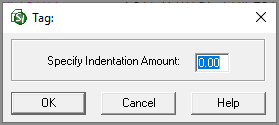
The Toggle Indentation  , Indented List
  , and Indented Item
  buttons on the SI Editor's Toolbar and Tagsbar have a default value of -0.33. To achieve an alternative indentation, use this option (or the Format menu > Indentation Amount), then input the numerical value required for the indented Text, List, or Item.
Justify and Style
- Justify: To modify the justification of a specific tag select Left, Right, or Center.
- Style: To modify the style of a specific tag, select Bold, Italic, or Underline. These attributes are also available on the SI Editor's Toolbar (e.g., Bold
 , Italic
  , or Underline
  ).
).
 To restore the tag to its original justification or style, uncheck the Attribute.
Submittal
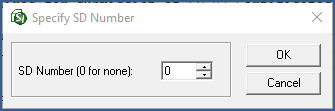
The Submittal (SBM) tag is exclusively used within the 01 33 00 Submittal Procedures Section and solely pertains to the Submittal Descriptions referenced beyond the Definitions paragraph. All text associated with the Submittal Description will be reconciled when the attribute is used. These changes appear in the output version of the Section (.prn, .doc, and .pdf files), not the original Section (.sec) file.
Hyperlink
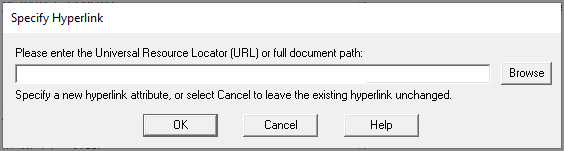
The Specify Hyperlink option becomes available when the cursor is positioned between the URL tags. To activate this option, right-click to open the Specify URL window where you can input or navigate to a hyperlink, target document, or website.