This command can also be executed from the SI Editor's Table's Right-click menu.
The Select Table command provides the capability to quickly select a table. This feature is helpful when adhering to the Revisions tracking procedures for Formatted Tables, as detailed in the Table Tips and Tricks.
 To Select a Table: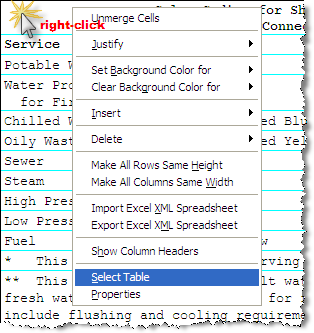
 Watch the Formatted Tables eLearning module within Chapter 3 - Getting Started.
Users are encouraged to visit the SpecsIntact Website's Support & Help Center for access to all of our User Tools, including Web-Based Help (containing Troubleshooting, Frequently Asked Questions (FAQs), Technical Notes, and Known Problems), eLearning Modules (video tutorials), and printable Guides.
| CONTACT US: | ||
| 256.895.5505 | ||
| SpecsIntact@usace.army.mil | ||
| SpecsIntact.wbdg.org | ||