This command can also be executed from the SI Editor's Table's Right-click menu.
The Justify command allows you to align text Left, Right, or Center within a column, row, or cell. For text within a table, utilizing the table's integrated justification options is recommended since it offers a wider range of formatting options.
 In the event of an error, click outside the table and use the Undo (Ctrl+Z) command. To learn more, see the Table Tips and Tricks topic.
Justification Options
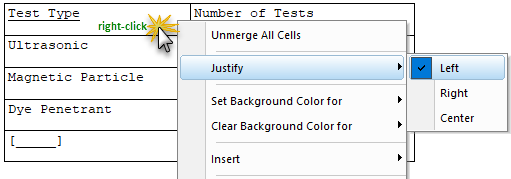
- Left: This will align the contents of the column, row, or cell to the left margin.
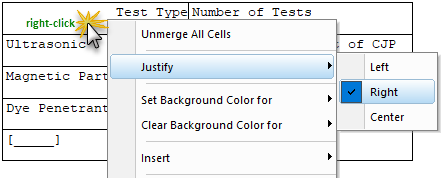
- Right: This will align the contents of the column, row, or cell to the right margin.
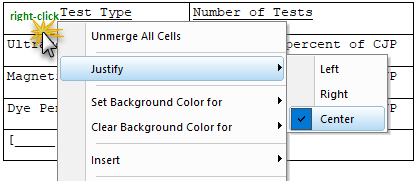
- Center: This will align the contents of the column, row, or cell to the center of the left and right margins.
How To Use This Feature
 To Justify the contents of A Row, Column or Table:
- In a Formatted Table, highlight one or more columns or rows and perform one of the following:
- Hover over a row, column, or table, right-click and select Justify, then select Left, Right, or Center
- Select the Table menu and select Justify, then select Left, Right, or Center
- To save the changes, click outside the table and perform one of the following:
- Click the Save button on the Toolbar
- Select the File menu and select Save
- Use the keyboard shortcut Ctrl+S
To Justify the contents of a Cell:
- In a Formatted Table, perform one of the following:
- Hover over a cell, right-click and select Justify, then select Left, Right, or Center
- Click in a cell, press the ESC key to cancel Edit Mode, select the Table menu and select Justify, then select Left, Right, or Center
- To save the changes, click outside the table and perform one of the following:
- Click the Save button on the Toolbar
- Select the File menu and select Save
- Use the keyboard shortcut Ctrl+S
Additional Learning Tools
 Watch the Formatted Tables eLearning module within Chapter 3 - Getting Started.
Users are encouraged to visit the SpecsIntact Website's Support & Help Center for access to all of our User Tools, including Web-Based Help (containing Troubleshooting, Frequently Asked Questions (FAQs), Technical Notes, and Known Problems), eLearning Modules (video tutorials), and printable Guides.