This command can also be executed from the SpecsIntact Explorer's Right-click menu.
The Execute Revisions command is a crucial step to finalize all tracked changes within your project Sections, allowing you to select one or more while keeping other Sections unchanged. When executed, the system will permanently incorporate text marked for addition by <ADD> tags and remove text marked for deletion by <DEL> tags. The Execute Revisions command also offers flexibility to apply these changes to a selected Job or Master.
 Before making significant changes to a Job or Master, it's always recommended to create a backup first. You can do this easily by going to the File menu > Backup and Restore.
 To learn more about Executing Revisions on a Job or Master, refer to the File menu > Execute Revisions topic.
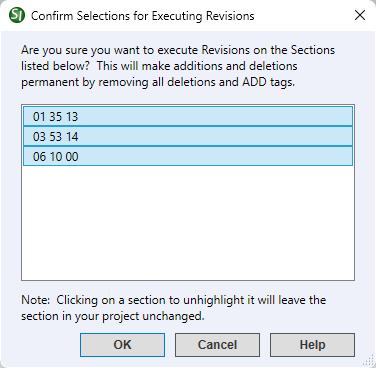
 The OK button will execute and save the selections made.
 The Cancel button will close the window without recording any selections or changes entered.
 The Help button will open the Help Topic for this window.
 to Execute Revisions On Selected Sections:
 Watch the Execute Revisions eLearning module within Chapter 8 - Additional Tools and Techniques.
Users are encouraged to visit the SpecsIntact Website's Support & Help Center for access to all of our User Tools, including Web-Based Help (containing Troubleshooting, Frequently Asked Questions (FAQs), Technical Notes, and Known Problems), eLearning Modules (video tutorials), and printable Guides.
| CONTACT US: | ||
| 256.895.5505 | ||
| SpecsIntact@usace.army.mil | ||
| SpecsIntact.wbdg.org | ||