
This command can also be executed from the SpecsIntact Explorer's Toolbar or by using the keyboard shortcut Ctrl+J.
The Options tab provides additional settings for configuring a new Job. From here, you can select key preferences such as Units of Measure (English, Metric, or Both) with the option to Use this setting when printing, enable Use Revisions, configure the Paragraph Format for Automatically Numbered Sections (Numeric or Alphanumeric), and the option to Manage Sections Remotely.
 The features available on the Options tab are global settings that remain with each Job and control the settings within the SI Editor.
 When a Job is backed up, all information from these tabs, including comments, is saved in the backup file.
 The SI Editor's Edit menu provides more in-depth information about the use of Revisions.
 Click the tabbed commands on the image below to see how to use each function.
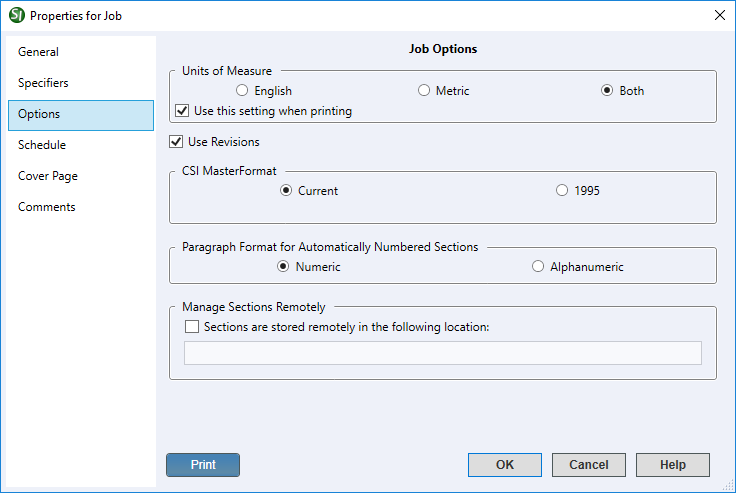
- Units of Measure - Initially set to English units by default and the most commonly used measurement for government projects, you also have the flexibility to choose Metric or Both unit systems based on your particular Job.
- Use this setting when printing - This option is selected by default and should remain checked if you wish for this setting to be applied to the printed output.
- Use Revisions - This option ensures that the Revisions functionality in the SI Editor is automatically enabled by default during all editing sessions. This provides immediate and continuous tracking of changes to your Sections without requiring you to manually turn the feature on each time.
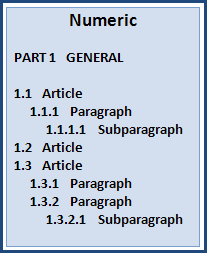
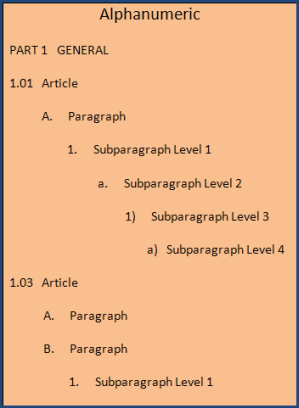
- Paragraph Format for Automatically Numbered Sections - The Automatic Paragraph Numbering feature allows you to select between Numeric and Alphanumeric numbering schemes for your Job. By default, all new Jobs are set to use the Numeric numbering scheme, as this is the standard for all government projects.
- Manage Sections Remotely - This feature supports third-party file management applications and should be used with caution. When you select the option Sections are stored remotely in the following location and enter the file path, SpecsIntact no longer manages the files and will offer to open the files from the designated location. When this feature is active, files will no longer appear in the SpecsIntact Explorer, and the Process and Print/Publish functions will become unavailable.
Examples
 Numeric Automatic Numbering Format:
Alphanumeric Automatic Numbering Format:
Standard Windows Commands
 The OK button will execute and save the selections made.
 The Cancel button will close the window without recording any selections or changes entered.
 The Help button will open the Help Topic for this window.
Additional Learning Tools
 Watch all of the eLearning modules within Chapter 2 - Creating a Job and Adding Sections.