This command can also be executed from the SpecsIntact Explorer's Right-click menu.
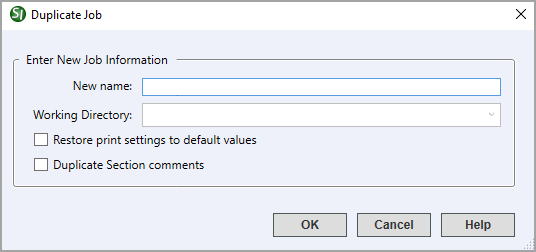
The Duplicate Job or Master creates a copy of your selected project. You can rename the duplicate Job or Master and either keep it in the current Working Directory or select a different Working Directory from the list. If the name you enter already exists, you will be asked to provide a different name. Additionally, you can choose to Restore print settings to default values or Duplicate Section comments.
When you duplicate a Master, the system automatically connects the new copy using the Connect Master option, streamlining your workflow. Although you can disable this option, it's generally not recommended as the primary purpose of duplication is to create a readily available, connected copy.
 The naming of Jobs and Masters is subject to specific requirements. The project names must not exceed 16 characters, using only letters, numbers, hyphens, and underscores. The use of spaces, punctuation marks, or any other special characters is prohibited.
| Duplicate Job | Duplicate Master | |
|---|---|---|
 |
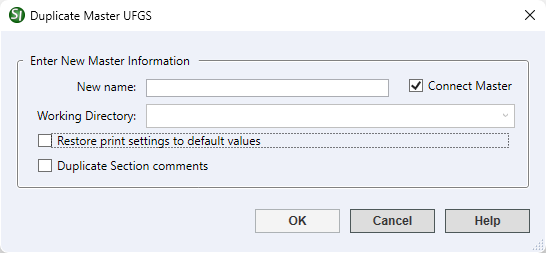 |
 The OK button will execute and save the selections made.
 The Cancel button will close the window without recording any selections or changes entered.
 The Help button will open the Help Topic for this window.
 to Duplicate a Job or Master:
Users are encouraged to visit the SpecsIntact Website's Support & Help Center for access to all of our User Tools, including Web-Based Help (containing Troubleshooting, Frequently Asked Questions (FAQs), Technical Notes, and Known Problems), eLearning Modules (video tutorials), and printable Guides.
| CONTACT US: | ||
| 256.895.5505 | ||
| SpecsIntact@usace.army.mil | ||
| SpecsIntact.wbdg.org | ||